

In Custom Sound Pro® Fitting Software (CSPro), a sound processor can be reset to remove all patient data and existing programs. During the reset process, the appropriate implant type must be selected: CI1000 series or CI600 series and earlier.
What is the workflow in Custom Sound Pro Fitting Software?
There are TWO ways to reset processors in CSPro:
Method 1: Status Bar
- In the lower left status bar, right click the processor icon
- Select Reset
- Choose the correct implant family:
- Reset for CI1000 series (Nexa)
- Reset for CI600 or earlier
- Confirm by selecting Yes

Method 2: Top Ribbon
- Go to Processor → Reset
- Select the processor you want to reset
- Choose the correct implant family (same options as above)
- Confirm by selecting Yes

Result:
The sound processor settings are cleared, and firmware is updated. This is an important step with Smart Sync (Quick Tip: Smart Sync in the Nucleus® Nexa® System – Cochlear ProNews).
Remember: Resetting processors will erase maps, datalogging, accessory pairing, and bimodal linking.
When should I reset the Nucleus 8 Sound Processor?
- Reset for different implant series (CI1000 or CI600 and earlier)
- Troubleshooting wireless connection
- Programming clinic loaner for troubleshooting
- Reset back-up processor to be Smart Sync Ready
What is stored on the Nexa implant memory?
- Up to 4 MAPs, including Hybrid
- Datalogs
- Device/Program settings
- MVBT adjustments in Remote Assist
- Bimodal/Bilateral Linking
What happens if I choose the incorrect implant type when resetting?
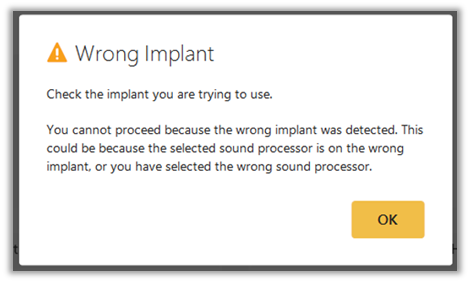
You will see an alert that the wrong implant is detected. If you see this message, repeat the reset process and be sure to choose the correct implant type.
Have questions? Call Audiology on Call at 877-883-3101 option 2.